Installing an eSIM on an Apple iPhone Made Easy
Installing an eSIM on an Apple iPhone A beginner-friendly guide showing travellers exactly how installing an eSIM on an Apple iPhone works before travelling overseas.

Installing an eSIM on an Apple iPhone is much easier than most travellers expect.
Instead of swapping tiny plastic SIM cards while travelling internationally, installing an eSIM on an Apple iPhone allows travellers to connect digitally in just a few minutes.
Whether you’re travelling through Europe, Asia, the USA, or almost anywhere else in the world, installing an eSIM on an Apple iPhone can make staying connected dramatically easier.
A Roamzy travel eSIM helps travellers avoid expensive roaming charges, reduce reliance on public airport WiFi, and connect instantly after landing.
What Is an eSIM?
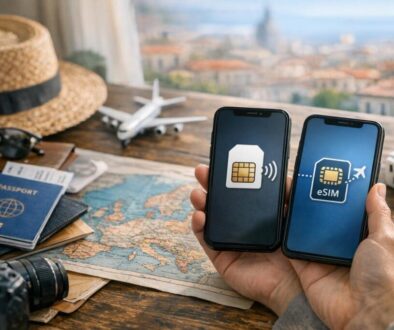
An eSIM is a digital SIM card built directly into your Apple iPhone.
Instead of inserting a physical SIM card, you simply install your mobile plan digitally using a QR code or manual setup details.
Once travellers understand installing an eSIM on an Apple iPhone, they usually find it far simpler than traditional SIM cards.
Good News:
Most modern Apple iPhones already support eSIM technology.
Most modern Apple iPhones already support eSIM technology.
Which iPhones Support eSIM?
Apple introduced eSIM support starting with the iPhone XS series.
Compatible iPhones Include:
- iPhone XS / XS Max
- iPhone XR
- iPhone 11 Series
- iPhone 12 Series
- iPhone 13 Series
- iPhone 14 Series
- iPhone 15 Series
- Newer iPhone models
Before installing an eSIM on an Apple iPhone, make sure your device is:
- Unlocked
- Updated to the latest iOS version
- Connected to WiFi during installation
Before Installing an eSIM on an Apple iPhone
After purchasing your Roamzy travel eSIM , you’ll receive a QR code by email.
Before installing an eSIM on an Apple iPhone, you’ll need:
- Your Apple iPhone
- A WiFi connection
- Your Roamzy QR code
Roamzy Tip:
Install your eSIM before leaving Australia so you can land connected instantly without relying on airport WiFi.
Install your eSIM before leaving Australia so you can land connected instantly without relying on airport WiFi.
Step-by-Step Guide to Installing an eSIM on an Apple iPhone
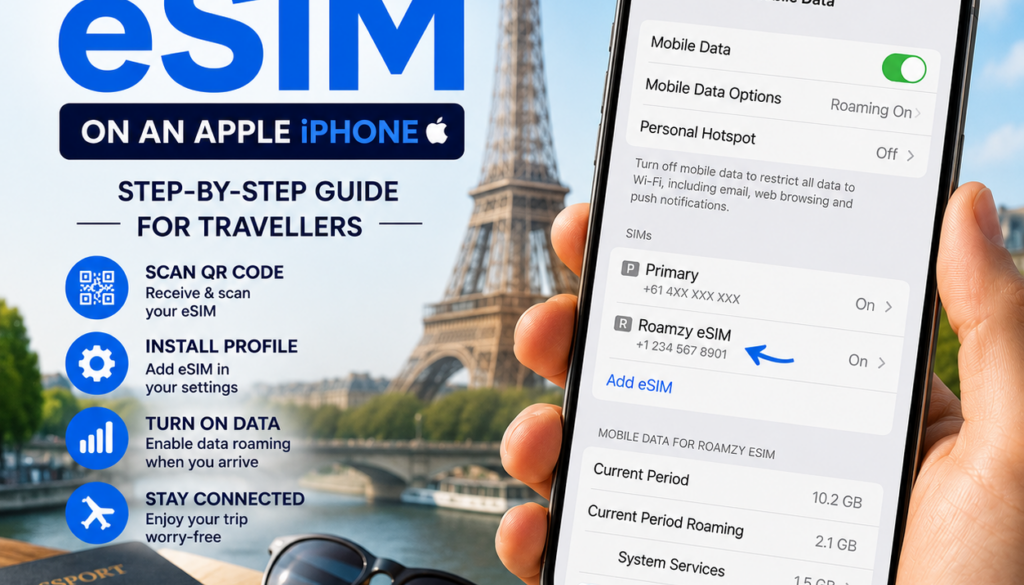
Step 1 — Open Settings
On your iPhone, open:
Settings → Mobile Data
Step 2 — Add eSIM
Tap:
Add eSIM
Depending on your iPhone version, this may also appear as:
- Add Cellular Plan
- Add Mobile Plan
Step 3 — Scan the QR Code
Use your iPhone camera to scan the QR code sent by Roamzy.
Your iPhone should automatically detect the eSIM profile.
Step 4 — Confirm Installation
Tap:
Continue → Add eSIM
Your iPhone will now install the eSIM profile automatically.
Step 5 — Label Your eSIM
Your iPhone may ask you to label the eSIM profile.
- Travel
- Roamzy
- Europe Trip
Step 6 — Set Default SIM Preferences
Most travellers keep their regular SIM for calls and use the Roamzy eSIM for travel data.
Step 7 — Turn On Data Roaming
Once you arrive overseas:
Settings → Mobile Data → Roamzy eSIM → Data Roaming ON
Once travellers complete installing an eSIM on an Apple iPhone, staying connected overseas becomes dramatically easier.
Can I Keep My Australian Number?
Yes.
Most iPhones support Dual SIM, allowing travellers to use:
- Your Australian SIM for calls and texts
- Your Roamzy eSIM for travel data
Apps like:
- Banking apps
- Google Maps
- Messenger
Common Problems Installing an eSIM on an Apple iPhone
QR Code Won’t Scan
- Check your internet connection
- Increase screen brightness
- Clean your camera lens
eSIM Not Connecting
- Ensure Data Roaming is turned ON
- Restart your iPhone
- Wait a few minutes after landing
Phone Says SIM Not Supported
Your iPhone may be carrier locked. Contact your provider to unlock the device.
Why Travellers Prefer eSIMs
- No physical SIM swapping
- Avoid expensive roaming fees
- Instant setup
- Stay connected immediately
- Safer than relying on public airport WiFi
Many travellers installing an eSIM on an Apple iPhone are also trying to avoid risky public WiFi hotspots while travelling.
Cybersecurity organisations including Europol continue warning travellers about fake public WiFi networks and airport hotspot scams.
Helpful Roamzy Travel Guides
- First Time Using an eSIM?
- Travel eSIM Setup Guide
- Airport WiFi Safety Tips
- Europe eSIM Plans
- Roamzy Secure
Frequently Asked Questions
Is installing an eSIM on an Apple iPhone difficult?
No. Most travellers complete installing an eSIM on an Apple iPhone in under five minutes.
Can I complete installing an eSIM on an Apple iPhone before travelling?
Yes. Most travel eSIMs can be installed before departure and activate once connected to an overseas network.
Are eSIMs safer than airport WiFi?
Generally yes. Mobile networks are typically more secure than public shared WiFi networks.
Do I need internet for installing an eSIM on an Apple iPhone?
Yes. A WiFi or internet connection is required during setup.
Final Thoughts
Once travellers understand the process of installing an eSIM on an Apple iPhone, international travel becomes far simpler and much less stressful.
Installing an eSIM on an Apple iPhone allows travellers to avoid expensive roaming fees, reduce reliance on public airport WiFi, and stay connected immediately after landing.
With Roamzy, installing an eSIM on an Apple iPhone is designed to be simple, secure, and beginner friendly for travellers worldwide.
🌍 Ready to install your travel eSIM before your next adventure?
Ready to Install Your First eSIM?
Get connected in minutes with Roamzy travel eSIMs designed for modern travellers.
Shop Roamzy eSIMs